Need help? We've got you.
Whether you've found a bug, have a question about a workflow, or need help troubleshooting an agent, we're here to help.
Rival offers two ways to get support:
Documentation is the best place to learn how features work, follow step-by-step guides, and find answers to common questions.
Support tickets connect you directly with the Rival team when something isn't working or you need personal assistance.
If you're experiencing any of the following, it's time to submit a support ticket:
Something isn't working as expected
You found a bug or error
An agent or workflow failed to run
You have a billing or account question
You need help from the Rival team
Most support tickets take less than a minute to submit, and you'll receive a response from a real person within 24 hours.
If you're not sure whether your question belongs in Documentation or Support, don't worry, submit a ticket, and we'll make sure it reaches the right team.
Step 1: Open Support
From the Rival home page, click Settings in the bottom-left corner. Under Help & Support, select Support. This opens the support ticket form.
Step 2: Enter Your Contact Information
Provide your:
First name
Last name
Email address
Double-check your email before submitting. We'll use it to respond to your ticket and ask any follow-up questions if we need more information.
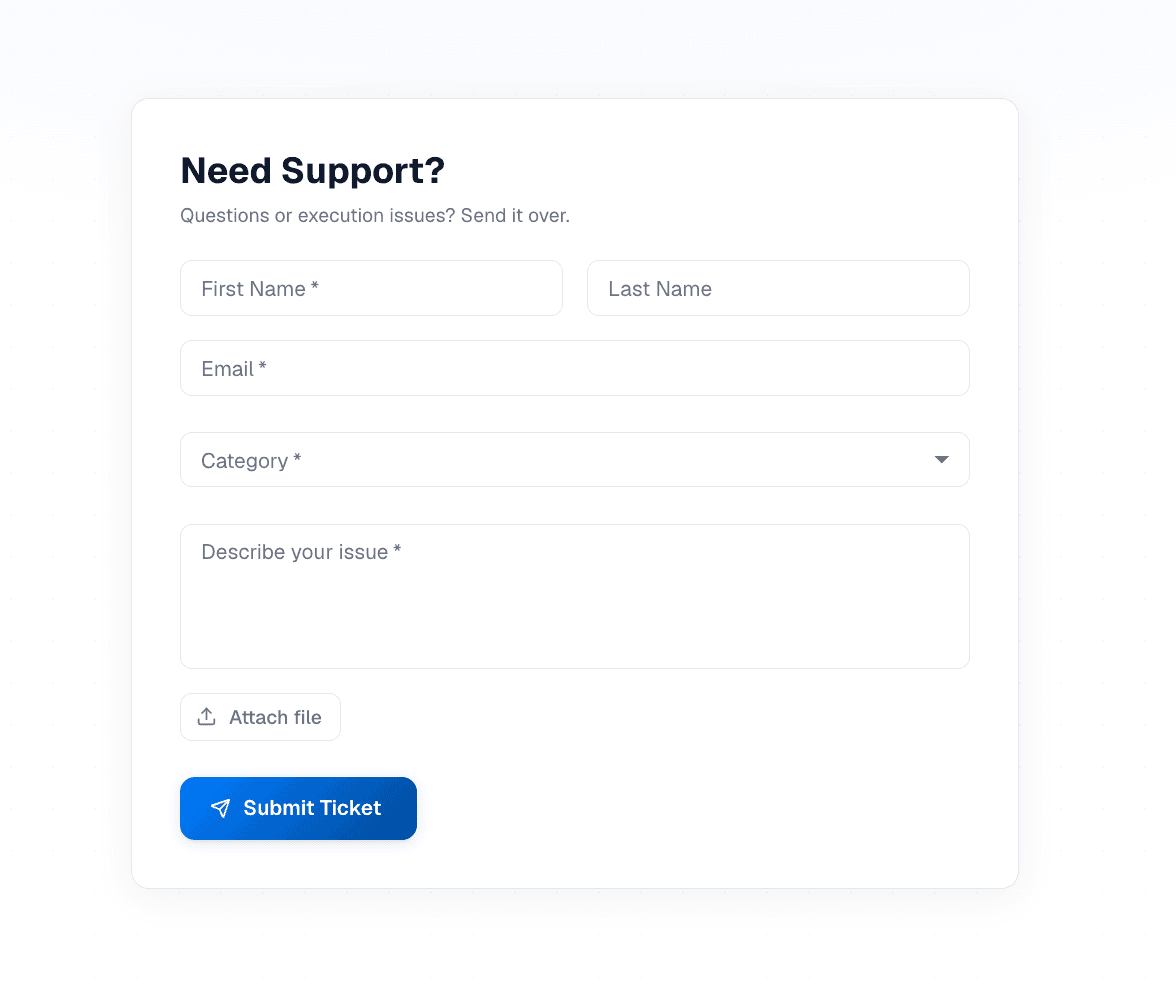
Step 3: Choose the Right Category
Select the category that best matches your issue. This helps route your request directly to the team best equipped to help, which means you'll get an answer faster.
Step 4: Describe the Issue
This is the most important part of your ticket. A detailed description helps us investigate immediately instead of coming back with follow-up questions.
Include:
What you were trying to do
What happened instead
Any error messages you saw
Steps to reproduce the issue, if possible
For example:
Instead of: "It isn't working."
Try: "I was running my Meeting Prep agent after connecting Gmail. The run failed with a timeout error after about 30 seconds."
The more context you provide, the faster we can help.
Step 5: Add a Screenshot (optional)
If you can, attach a screenshot or screen recording. Seeing exactly what you experienced often helps us identify the issue much faster than a written description alone.
Step 6: Submit Your Ticket
Once you've completed the form, click Submit Ticket.
That's it, we'll take it from there.
What Happens Next?
After you submit your ticket:
Your request is routed to the appropriate team.
We'll investigate the issue.
If we need more information, we'll contact you using the email you provided.
Once we have an answer or solution, we'll follow up as quickly as possible.
Our goal is to respond to every support request within 24 hours.
TL;DR
Need help? Go to Settings → Help & Support → Support.
Tell us what you were trying to do, what happened, and include a screenshot if you have one. The more detail you provide, the faster we can investigate and get you back to work. Every ticket is reviewed by a real member of the Rival team, and we aim to respond within 24 hours.