Once you have an agent, whether you built it yourself or adopted one from the marketplace, using it is simple.
Open My Tools and click the agent you want to run. This is its home base. Everything lives here: the model, connectors, chat window, rituals, and settings.
Step 1: Choose a Brain
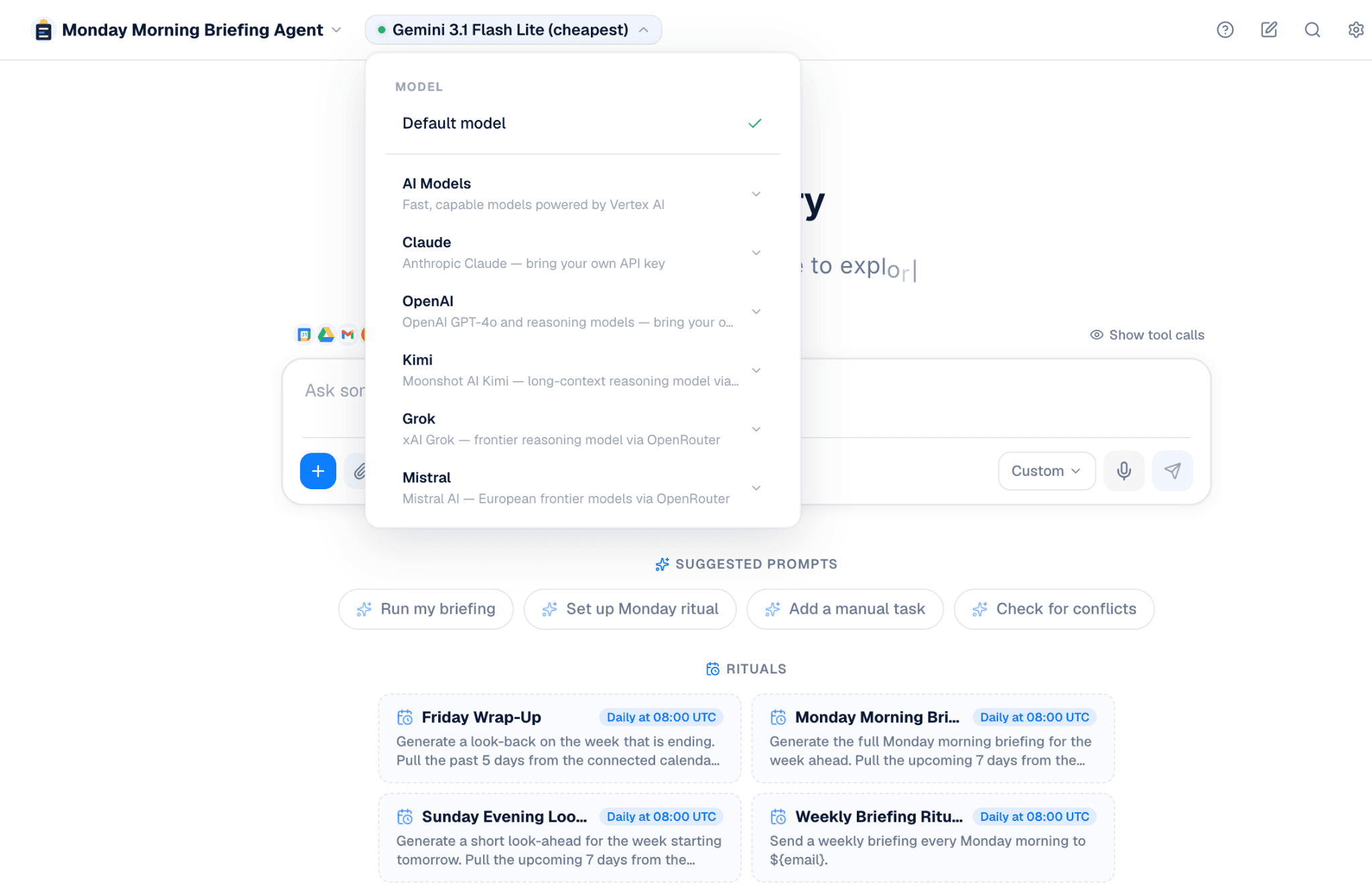
At the top of the page is the model (LLM), or the "brain" your agent uses to think.
Rival supports multiple models, and you can switch between them depending on the task. If you'd rather not think about it, Gemini is built in and ready to go. You can also connect your own API keys and use other supported models.
Don't worry too much about this at first. Most agents will work great with the default setup.
Step 2: Connect What It Needs
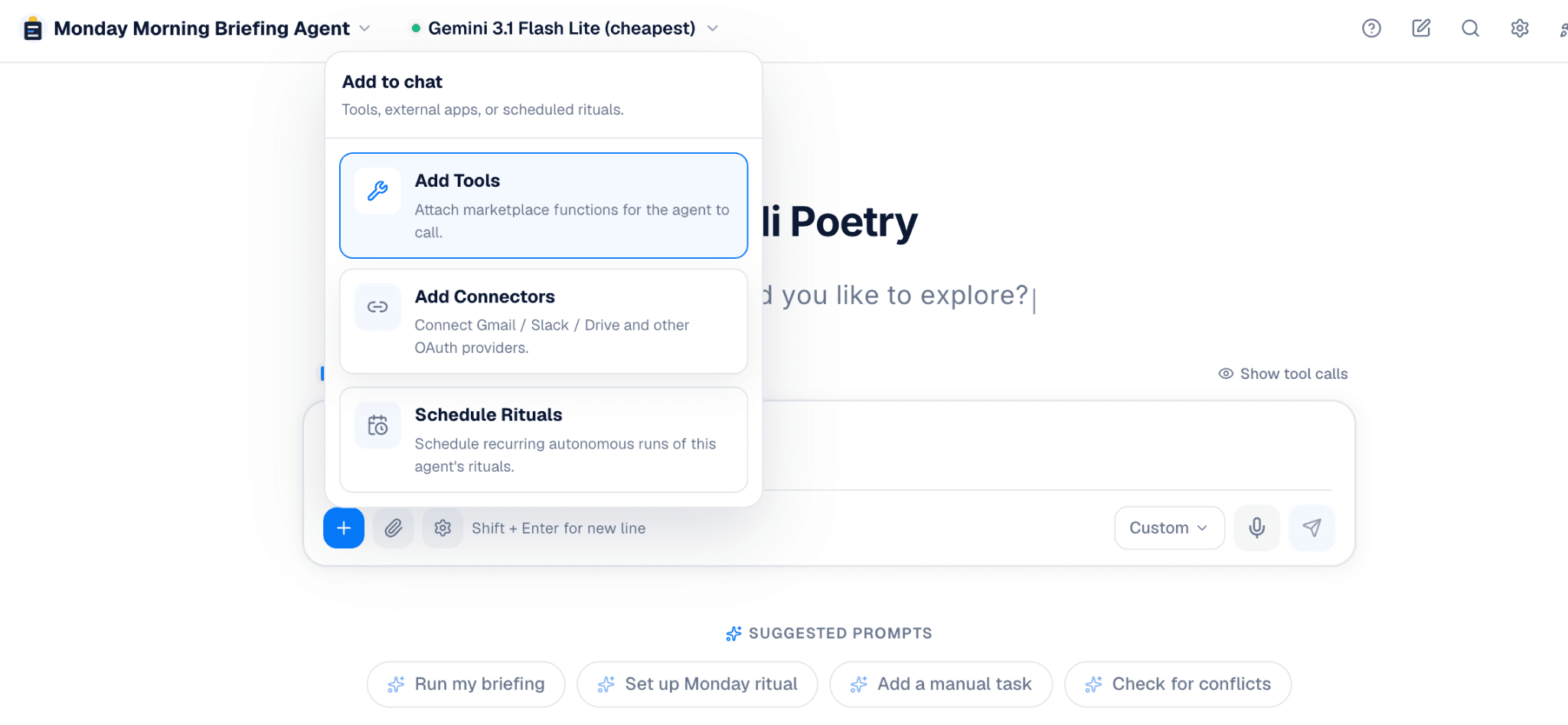
Before an agent can do real work, it may need access to the tools you use every day.
These are called connectors.
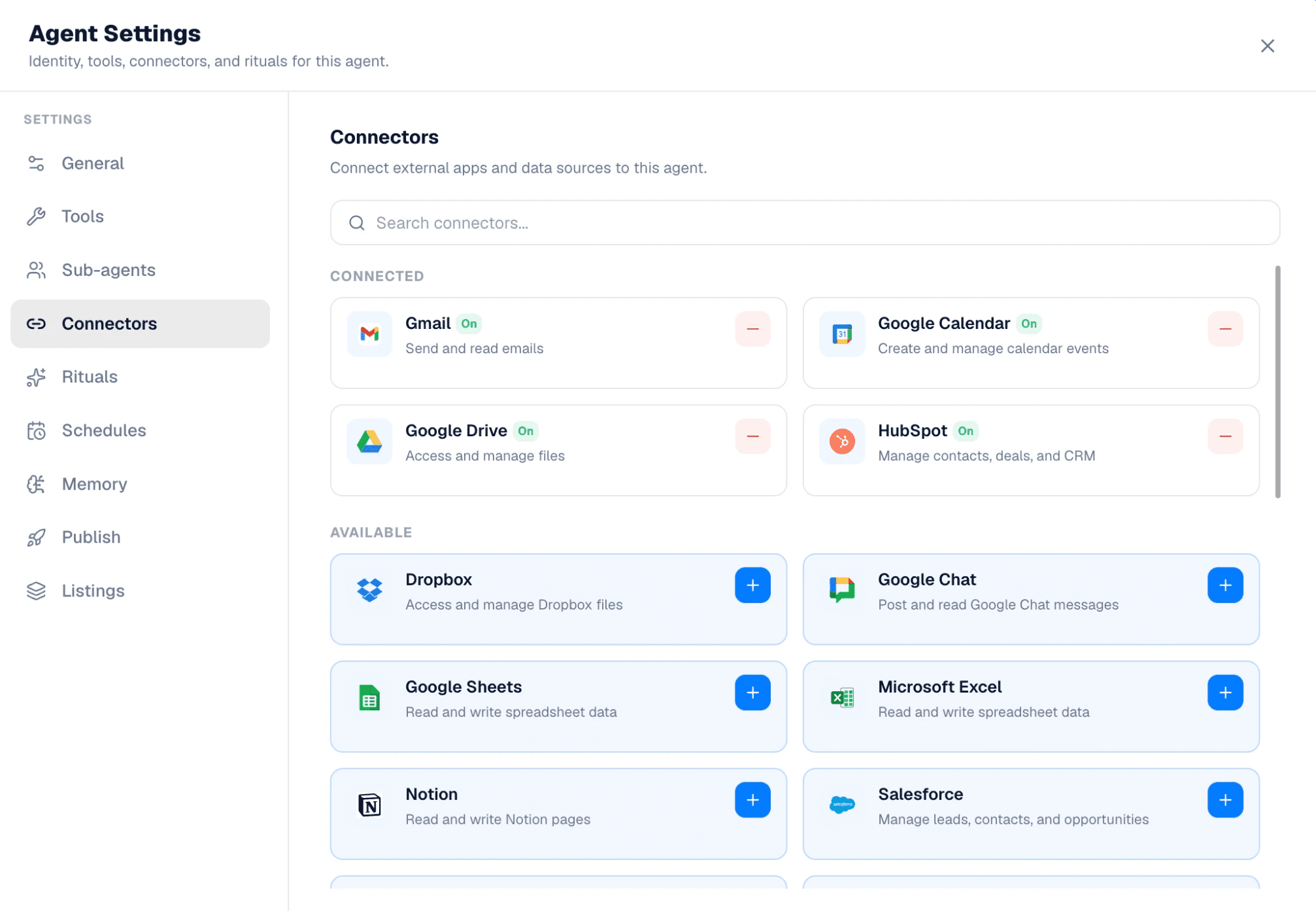
A connector is simply permission for your agent to use one of your accounts, like Gmail, Outlook, Google Calendar, Slack, or Drive.
If you've ever clicked "Allow" when signing into an app with Google, you've already used a connector.
If an agent asks for a connector, connect it. If it recommends a service you don't use, swap it for one you do. For example, if the builder suggested Gmail but you use Outlook, remove Gmail and connect Outlook instead.
Step 3: Ask It to Do Something
Now you're ready.
Type what you want into the chat box just like you would message a coworker.
Examples:
Find my upcoming meetings and summarize them.
Draft a follow-up email for yesterday's call.
Research our top competitors.
Create a weekly status report.
No special commands required. Just tell the agent what you need.
As it works, you'll see tool calls appear on the screen. That's simply the agent using its tools to gather information, send messages, search documents, or complete tasks. Rival shows you what's happening so you can follow along.
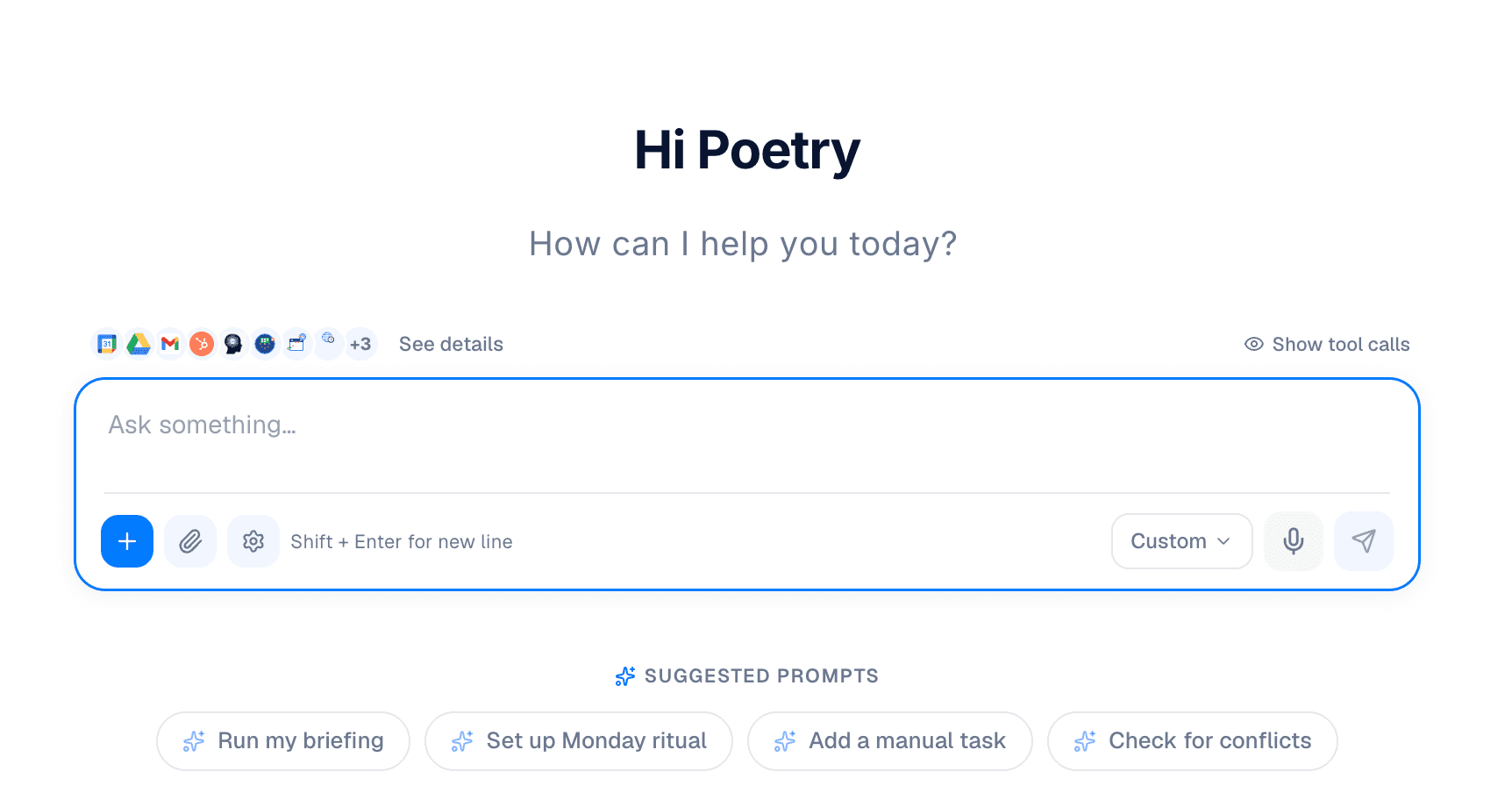
As it works, you will see tool calls pop up on the screen. A tool call is just the agent reaching for one of its tools to grab what it needs, and Rival shows each one so you can watch it work and see exactly what it is doing.
Step 4: Put It on Autopilot
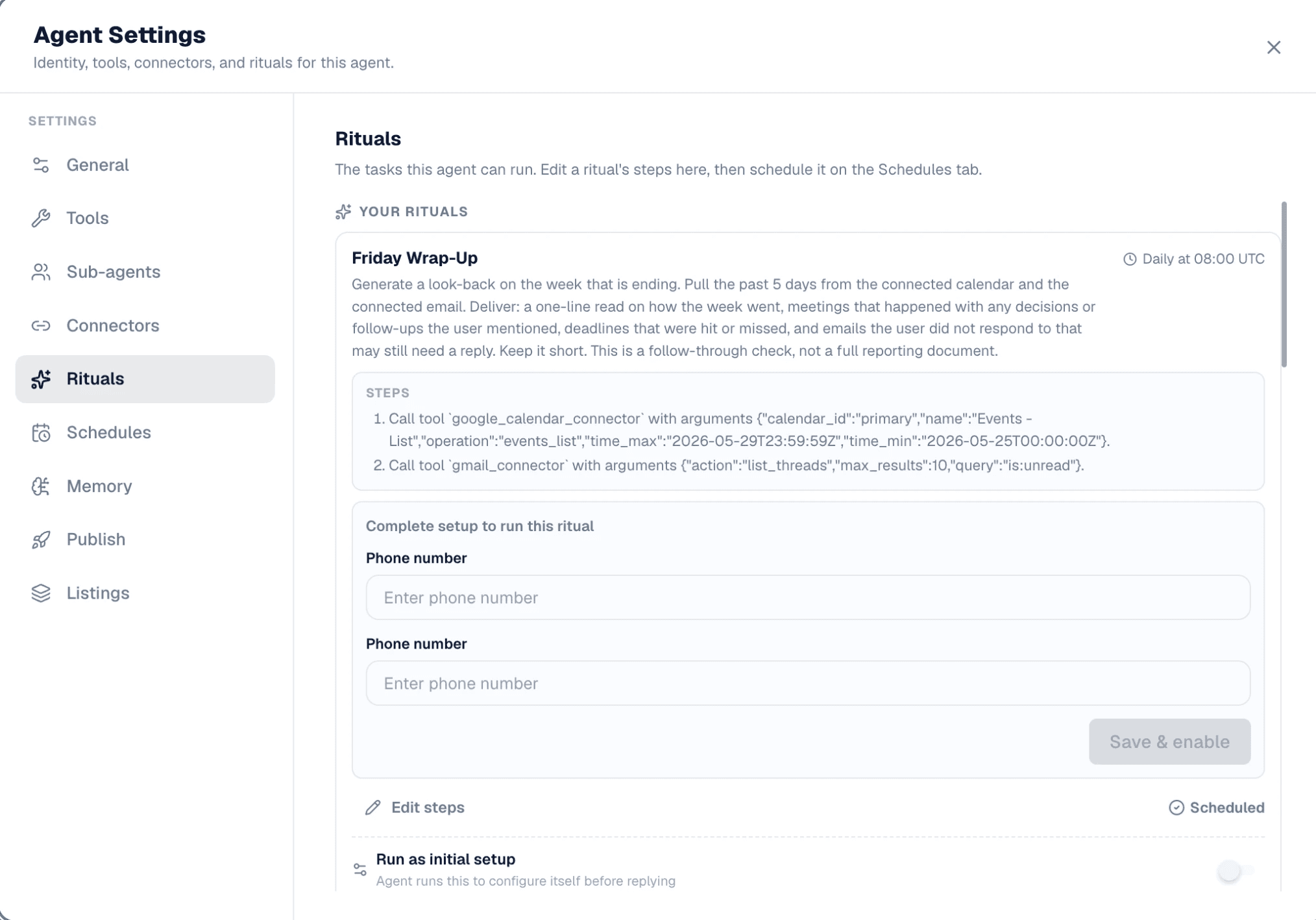
This is where agents become really useful. Under the Rituals tab, you can tell an agent to run automatically on a schedule. Maybe that's every morning at 8:00 AM. Maybe it's every Friday afternoon. Maybe it's whenever a new email arrives.
Set it once, and the agent keeps doing the job for you. No reminders. No prompts. No opening the app.
Think of rituals as recurring jobs your agent handles in the background.
Step 5: It Gets Better Over Time
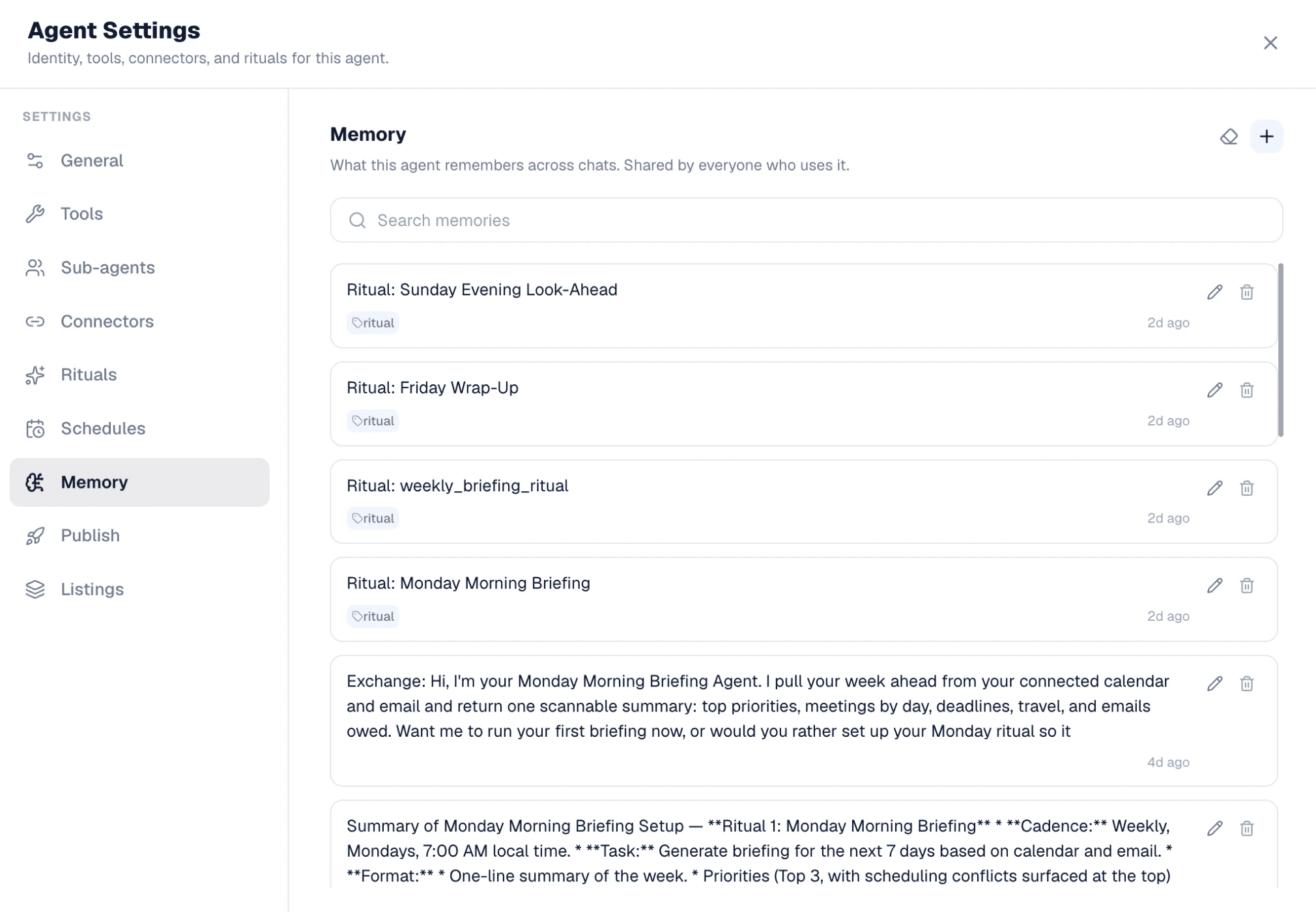
Agents can remember things.
The more you work with an agent, the more context it can build around your preferences, projects, and workflows. That means less explaining and better results over time.
You're always in control. Keep what you want it to remember and remove what you don't.
TL;DR
Open an agent. Connect what it needs. Tell it what to do.
Or better yet, set a ritual and let it do the work on its own.
That's the whole point.